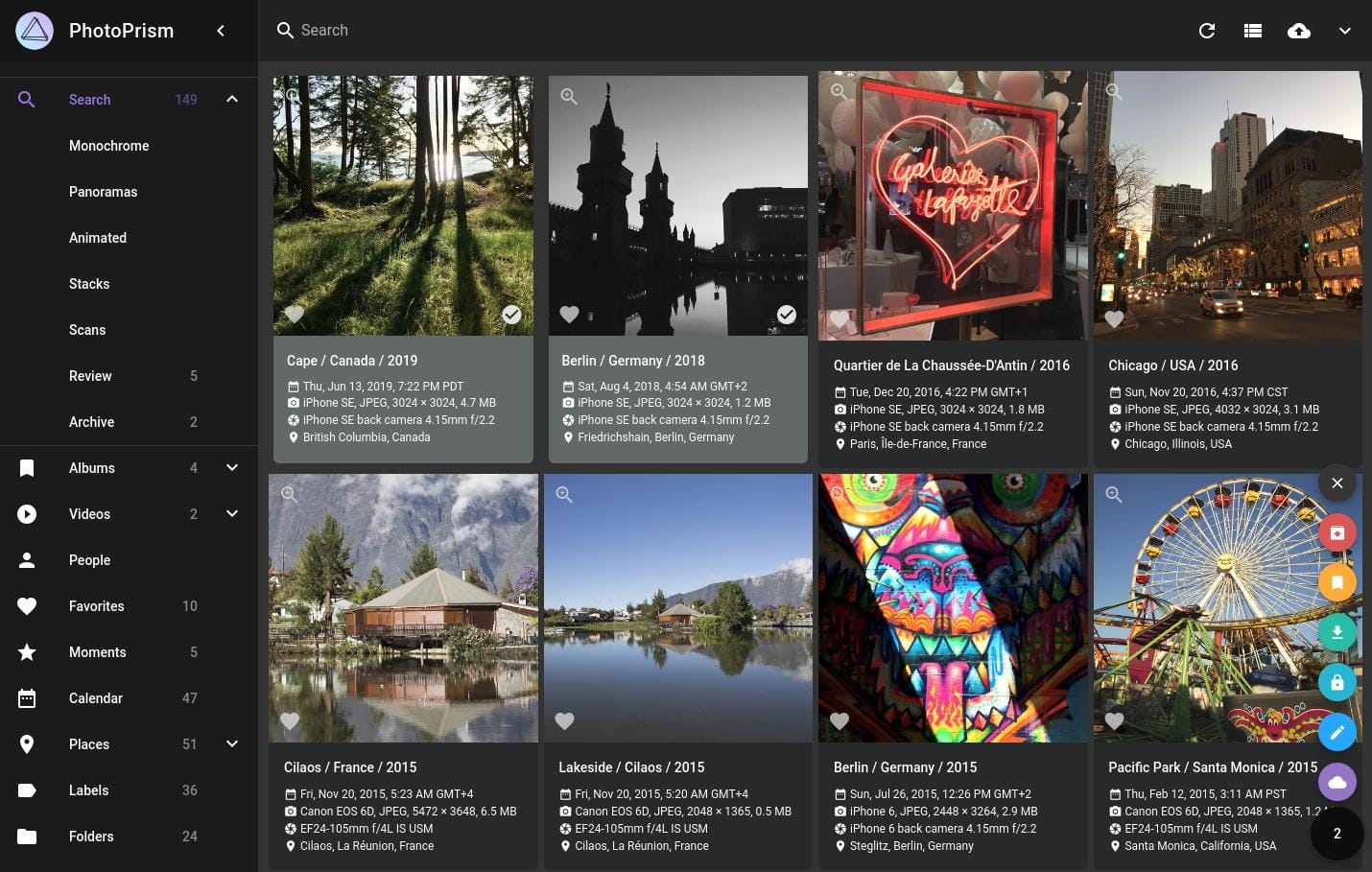
Concerned about Google Photos storage limits or where your data is kept, and want to manage your photos on a Windows PC? PhotoPrism is one option. This guide walks through installing PhotoPrism with Windows 11 and Docker Desktop, then displaying your own photos.
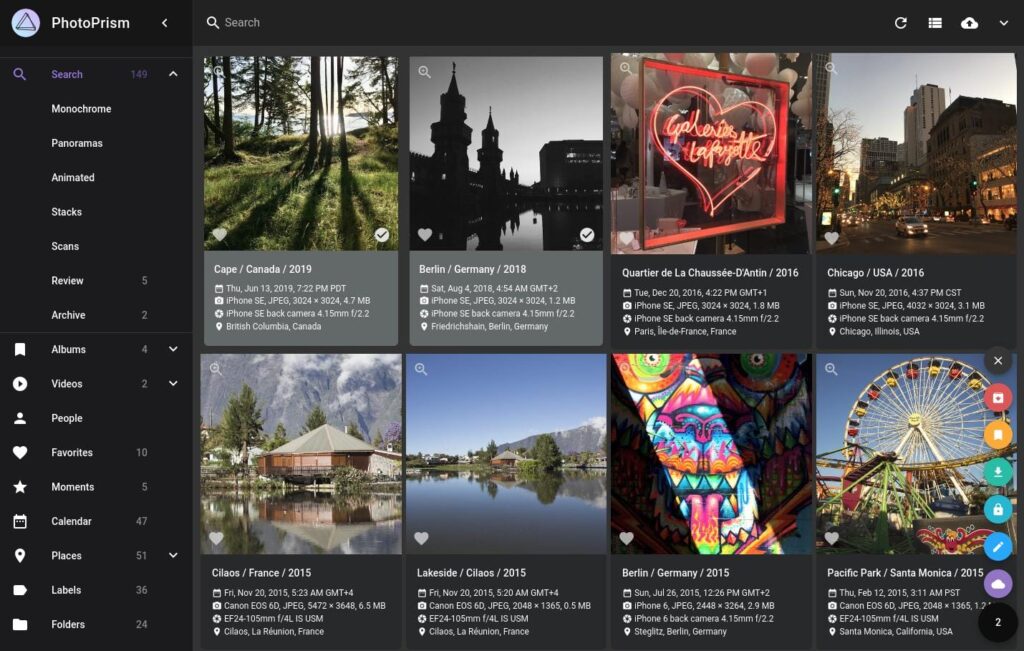
We use the official Docker Compose file for Windows, so you do not need to write a configuration file from scratch. You must still check the administrator password, photo folder, and backups.
- Can PhotoPrism replace Google Photos?
- Before you begin
- Understand where PhotoPrism stores data
- STEP 1: Prepare WSL 2 and Docker Desktop
- STEP 2: Create folders for your photos
- STEP 3: Get the official Compose file for Windows
- STEP 4: Make the required changes before starting
- STEP 5: Start PhotoPrism and sign in
- STEP 6: Add photos and create an index
- Backup and update basics
- Common PhotoPrism setup problems
- Summary
- Sources
- Disclaimer
Can PhotoPrism replace Google Photos?
PhotoPrism is a self-hosted app for organizing and searching photos and videos stored on your own PC or server through a browser. You choose where the photos are stored, and it supports face recognition, automatic classification, and RAW image management. Unlike Google Photos, however, it is not a service that stores your files in the cloud. You are responsible for keeping the PC running, updating the software, and backing up the data.
For other options, see five Google Photos alternatives. If automatic uploads from your phone matter most, see how to set up Immich on Windows.
Before you begin
- This guide is for a Windows 11 x64 (AMD64) PC. Docker Desktop runs Linux containers with the WSL 2 backend.
- Docker Desktop’s Windows requirements call for at least 8 GB of system memory. For PhotoPrism, a guideline is two CPU cores and at least 3 GB of physical memory; larger photo libraries need more headroom.
- Allow storage space for the original photos, thumbnails, and database. Use a local SSD if possible.
- Start with access from the same PC only. Do not open a port to the internet.
You can also install it on Windows 10 with a compatible Docker Desktop version, but screens and requirements may differ. Check the current Docker Desktop requirements for Windows before starting.
Understand where PhotoPrism stores data
C:\PhotoPrism\originals: the original photos and videos you want to displayC:\PhotoPrism\storage: PhotoPrism settings, thumbnails, backups, and more- Docker’s
databasevolume: MariaDB data, stored separately from the original photos
Seeing your photos in the app does not mean they are backed up. Protect both the original files and the database.
STEP 1: Prepare WSL 2 and Docker Desktop
If WSL is not installed, open PowerShell as an administrator, run the following command, and restart when prompted. Skip this if you already use WSL 2.
wsl --installNext, install and start Docker Desktop from the official Docker website. Use the WSL 2 backend and Linux containers. If both of these commands work in PowerShell, you are ready to continue.
docker version
docker compose version
Commercial use of Docker Desktop is subject to license conditions. Check the official license terms if you are using a work PC.
STEP 2: Create folders for your photos
Create the working folders in PowerShell. If you already have photos elsewhere, you can specify their existing folder later instead.
New-Item -ItemType Directory -Force -Path C:\PhotoPrism\originals, C:\PhotoPrism\storage
Set-Location C:\PhotoPrism
If you choose another working location, run the following commands from that folder too.
STEP 3: Get the official Compose file for Windows
Save the official PhotoPrism configuration file for Windows in your working folder.
curl.exe -L -o compose.yaml https://dl.photoprism.app/docker/windows/compose.yamlYou can also save the official compose.yaml in your browser. Make sure the file was not named compose.yaml.txt. The distributed file may change, so avoid reusing a configuration file from an older article unchanged.
STEP 4: Make the required changes before starting
Open C:\PhotoPrism\compose.yaml in a text editor and change at least the following:
- Set
PHOTOPRISM_ADMIN_PASSWORDto a unique password that is hard to guess. Do not use the distributed file’sinsecuredefault. - Set
PHOTOPRISM_DATABASE_PASSWORDandMARIADB_PASSWORDto the same new value. SetMARIADB_ROOT_PASSWORDto a separate strong value. - Under
volumes:, change the photo folder to"C:/PhotoPrism/originals:/photoprism/originals". Use forward slashes (/) for the Windows path inside the configuration file. - Keep
"./storage:/photoprism/storage"and MariaDB’sdatabasevolume.
For access only from the same PC as in this guide, changing "2342:2342" under ports: to "127.0.0.1:2342:2342" limits the listening address to localhost. Access from a phone or another device requires separate network and HTTPS planning.
Indentation matters in YAML, so preserve the leading spaces. If a password contains $, escape it as $$ in Compose. Passwords remain in plain text in the configuration file; do not include it in a public repository or screenshot.
STEP 5: Start PhotoPrism and sign in
Run these commands in PowerShell from C:\PhotoPrism.
docker compose up -d
docker compose ps
Downloading the images and initializing the database can take time on the first run. Once it starts, open http://localhost:2342/ in a browser on the same PC. Sign in with the username admin and the administrator password you set in STEP 4.
Important: PHOTOPRISM_ADMIN_PASSWORD sets the password on first startup. Changing only its value in the Compose file after that will not change the existing account password.
STEP 6: Add photos and create an index
Put your photos and videos in C:\PhotoPrism\originals. If you pointed the configuration directly at an existing folder, you do not need to copy them. In PhotoPrism, open “Library” → “Index” and start indexing. Photos appear as processing progresses.
Use “Index” if you want to preserve existing file names and folder structure. “Import” is a separate feature that moves and organizes photos. Check the difference before choosing when working with important originals.
Backup and update basics
In the official Windows configuration, MariaDB stores its data in a named Docker volume. Do not rely only on copies of originals and storage; first make a database backup.
docker compose exec photoprism photoprism backup -i -fThen regularly back up C:\PhotoPrism\originals and C:\PhotoPrism\storage to another location, such as an external drive. Do not make the automatically generated database backup your only safeguard.
Back up again before updating. Then run this in the folder containing the Compose file:
docker compose up -d --pull alwaysCommon PhotoPrism setup problems
The page does not open
Check that Docker Desktop is running and use docker compose ps to confirm that PhotoPrism and MariaDB are running. If another app uses port 2342, change the host-side port in the Compose file.
Repeated restarts or slow photo loading
Check for insufficient memory, storage permissions, or lack of disk space. docker compose logs --tail=100 photoprism and docker compose logs --tail=100 mariadb can help identify the cause. Avoid unreliable USB flash drives or network drives for photo and database storage.
I want to store photos on drive D:
You can specify a path such as "D:/Photos:/photoprism/originals". Create the folder first, update Docker Desktop and WSL 2, and confirm it works. Starting with the C: drive configuration before moving makes problems easier to isolate.
Can I automatically back up photos from my phone?
PhotoPrism focuses on viewing and organizing photos. Automatic transfers from a phone require separate setup with a compatible sync app or WebDAV. The default setup does not provide the same experience as Google Photos.
Summary
You can install PhotoPrism on Windows with Docker Desktop and the official Compose file. Start with access from the PC itself, set the photo folder and passwords correctly, and then index your photos. For long-term use, include backups of the originals, storage, and database, plus regular updates.
Sources
- PhotoPrism: Setup with Docker Compose
- PhotoPrism: First steps and indexing
- PhotoPrism: Backups
- Docker: Install Docker Desktop on Windows
- Microsoft: Install WSL
Disclaimer
This is a general installation example based on official documentation available as of September 2026. Screens and settings may change as Windows, Docker Desktop, and PhotoPrism are updated. Back up important photos to separate media before starting, and decide on configuration changes and ongoing operation according to your own environment.


Comments